How to Scan Documents on iPhone: 3 Free Ways (and Which to Use)
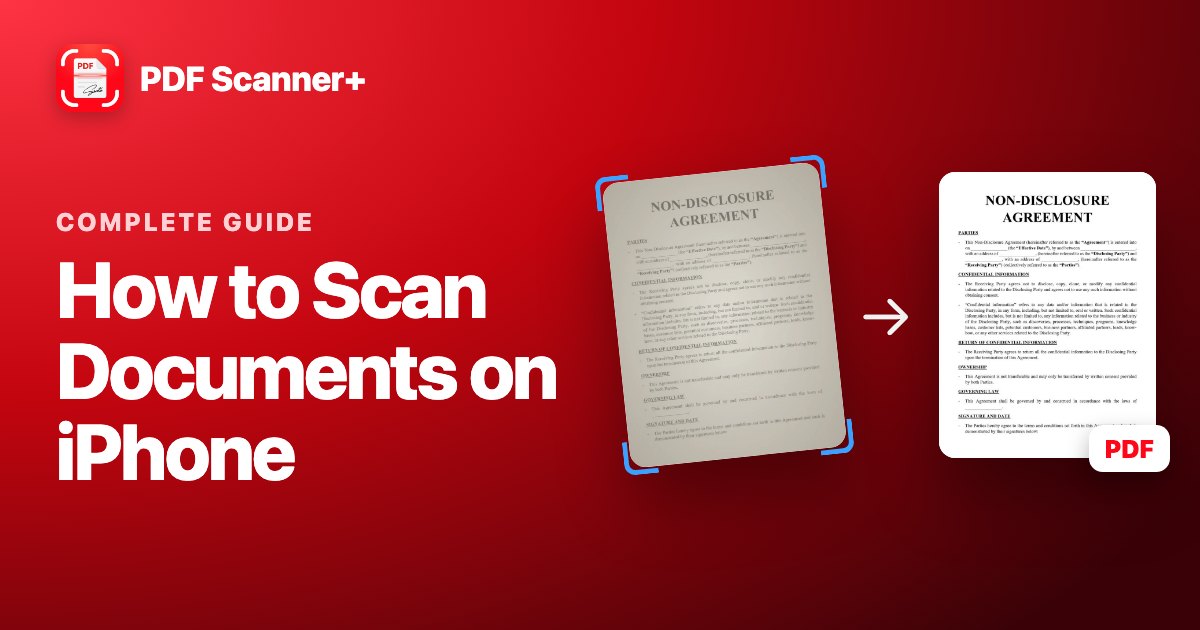
You don't need a scanner to turn paper into a PDF. Your iPhone's camera can find the edges of a page, straighten it and clean it up, and the result is good enough for contracts, forms, receipts and school work.
There are three good ways to do it: two are built into every iPhone and cost nothing, and the third is a scanner app. This guide shows each one step by step, explains which to use when, and ends with tips for getting sharp, readable scans every time.
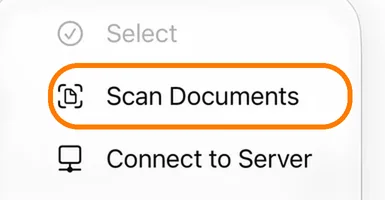
- Files app: tap Browse, open a folder, tap ⋯ and choose Scan Documents. The scan is saved as a PDF in that folder.
- Notes app: in a note, tap the paperclip button and choose Scan Documents. The scan is saved inside the note.
- A scanner app like PDF Scanner+ adds signing, filters and page organising in one place.
Which method should you use?
| Files app | Notes app | PDF Scanner+ | |
|---|---|---|---|
| Price | Free | Free | First document free, then Premium |
| Saves as | PDF in a folder | Scan inside a note | PDF in the app |
| Best for | A quick PDF to send or keep | Scans with notes around them | Scanning, signing and editing regularly |
| Sign the document | Yes, with Markup | Yes, with Markup | Yes, built in |
For a one-off scan, the Files app is the quickest way to end up with a real PDF file. If you scan, sign and send documents often, a dedicated app saves you a lot of tapping.
Method 1: Scan with the Files app
This is the most direct route to a PDF, because the scan is saved as a file straight away.
- Open the Files app and tap Browse.
- Open the folder where you want the PDF, for example On My iPhone or iCloud Drive.
- Tap the ⋯ button in the top corner and choose Scan Documents.
- Hold your iPhone over the page. When the page is highlighted on screen, it's captured automatically. You can also tap the shutter button yourself.
- Scan any other pages the same way. They'll all go into one PDF.
- Tap Save. The PDF appears in the folder. To give it a better name, touch and hold it and choose Rename.
Method 2: Scan with the Notes app
Notes is handy when the scan belongs with something you're writing, like meeting notes or a list of receipts.
- Open Notes and create a new note, or open an existing one.
- Tap the paperclip button above the keyboard. On older iOS versions it's a camera button.
- Choose Scan Documents and scan your pages as described above.
- Tap Save. The scan appears in the note.
To get a PDF out of Notes, tap the scan in the note, tap the Share button and choose Save to Files, or send it straight to Mail or Messages.
Method 3: Use a scanner app
The built-in scanners are good, but they're spread across apps: you scan in one place, sign with Markup, and organise pages somewhere else. A scanner app puts all of that in one place. Here's what our app, PDF Scanner+, does:
- Automatic edge detection. The page is found, cropped and straightened for you.
- Filters and adjustments like Enhance and black and white, plus contrast and brightness, to make faint or shadowy scans readable.
- Signing. Draw your signature with your finger, pick a colour and line width, and place it anywhere on the page.
- Page tools. Reorder, rotate, delete and add pages, and find documents quickly with search and sorting.
- Import photos you've already taken from Photos or the Files app.
- Privacy. Scanning, editing and signing all happen on your iPhone, and your documents are never uploaded.
To be upfront about cost: the app is free to download and your first document is free. Premium unlocks unlimited documents and sharing or printing your PDFs. If you only scan something once a year, the free built-in options above are all you need.
Tips for sharp, readable scans
- Use good, even light. Daylight from a window works best. Avoid lamps that throw your phone's shadow onto the page.
- Put the page on a dark, plain surface. The contrast helps your iPhone find the edges.
- Hold the phone flat above the page, not at an angle, so text at the top and bottom is the same size.
- Hold still for a moment. Let the automatic capture take the shot instead of tapping while you move.
- Flatten folded paper before you scan. Creases cast shadows that can hide text.
- Check every page before you save. It's easier to rescan now than after you've sent it.
What to do with your scan next
- Sign it. See our guide on how to sign a PDF on iPhone.
- Add photos you already took. See how to turn photos into a PDF on iPhone.
- Combine it with other PDFs. See how to combine PDFs on iPhone.
- Scanning receipts? Here's a simple system to keep them organised.
- Send it. Open the PDF, tap Share and choose Mail, Messages or another app.
- Keep it safe. Saving important scans to iCloud Drive means you'll still have them if you lose your phone.
Frequently asked questions
Can I scan to PDF on iPhone for free?
Yes. Both the Files app and the Notes app have a free document scanner built in. The Files app saves your scan as a PDF straight away. In Notes, share the scan and choose Save to Files to get a PDF.
How do I scan several pages into one PDF?
Keep scanning before you tap Save. Every page you capture in one session goes into the same PDF, in the order you scanned them. More tips for multi-page scans.
Where do my scanned documents go?
A scan made in the Files app is saved in the folder you were in. A scan made in Notes stays inside that note until you share or save it somewhere else.
Is an iPhone scan as good as a real scanner?
For most paperwork, such as contracts, forms, letters and receipts, yes. For old photos or anything you want to archive at the highest quality, a flatbed scanner still does better.
Is it safe to scan private documents with an app?
It depends on the app. Some scanner apps upload your documents to their servers. Check the privacy details on the App Store before scanning anything sensitive. PDF Scanner+ processes and stores everything on your iPhone and never uploads your documents.
Keep reading
 Signing
How to Sign a PDF on iPhone with Your Finger (Free)
Sign any PDF on your iPhone in under a minute, for free. Step by step with the built-in Markup tools, from an email, and for paper documents.
Read guide → PDF basics
How to Turn Photos into a PDF on iPhone (Free)
Took photos of a document instead of scanning it? Here's how to combine them into one PDF on your iPhone for free, and how to make them look like real scans.
Read guide →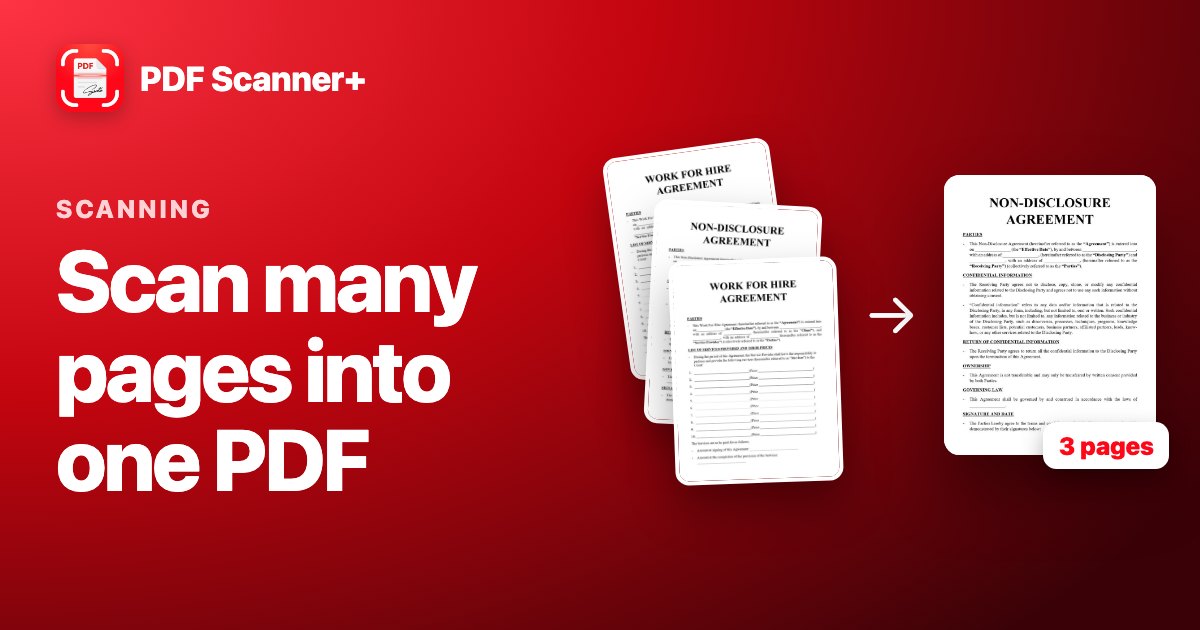 Scanning
How to Scan Multiple Pages into One PDF on iPhone
Scan a contract, a form or a booklet into a single PDF on your iPhone, for free. Plus how to fix the page order and add pages you forgot.
Read guide →
Your scanner is already in your pocket
PDF Scanner+ turns paper into clean PDFs in seconds. Your documents stay on your iPhone. Free to download.