How to Sign a PDF on iPhone with Your Finger (Free)
Someone sends you a contract, a permission slip or a rental form to sign. You don't need to print it, sign it with a pen and scan it back in. Your iPhone can add your handwritten signature to any PDF in under a minute, for free.
Here's how to do it with the tools built into iOS, how to sign a document someone emailed you, and how to sign something that's still on paper.
Open the PDF from the Files app, tap the Markup button (the pen), then tap + and choose Add Signature. Draw your signature with your finger, tap Done, then drag it into place and resize it.
How to sign a PDF with Markup
- Open the Files app and tap the PDF. On the latest iOS it opens in Apple's Preview app.
- Tap the Markup button. It looks like a pen tip in a circle.
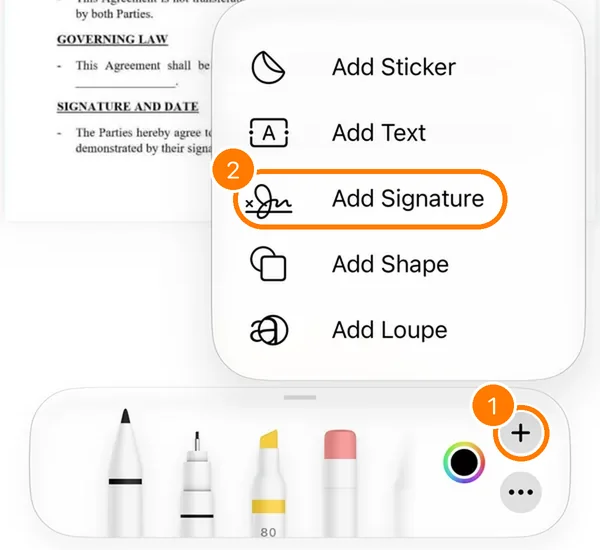
- In the drawing tools at the bottom, tap + and choose Add Signature.
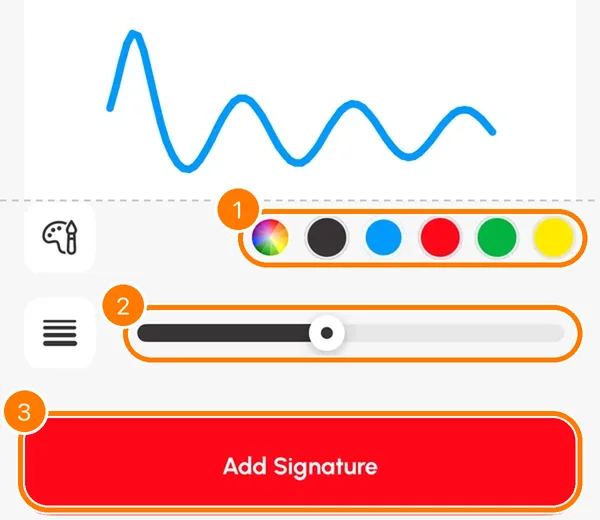
- Sign with your finger in the box. If it doesn't look right, tap Clear and try again. Tap Done when you're happy with it.
- Your signature appears on the page. Drag it onto the signature line and pull its corners to make it bigger or smaller.
- Tap Done. The signature is saved into the PDF.
How to sign a PDF someone emailed you
- In the Mail app, tap the PDF attachment to open it.
- Tap the Markup button, then + → Add Signature, and sign as above.
- Tap Done. Mail offers to reply with the signed document attached, so you can send it straight back.
If the PDF came in another app, such as WhatsApp or Gmail, save it to Files first. Open it, tap Share and choose Save to Files. Then sign it as described in the first section.
How to sign a paper document
If the document is on paper, you'll need to turn it into a PDF first. Scan it with the Files app or Notes, as explained in our guide to scanning documents on iPhone, and then sign the PDF with Markup.
A scanner app can do both in one go. In PDF Scanner+, our app, you scan the page, then draw your signature, choose its colour and line width, and place it anywhere on the page, all without leaving the app. Scans are processed and stored only on your iPhone.
Tips for a signature that looks right
- Turn your iPhone sideways when you draw your signature. You get a wider box and a more natural signature.
- Sign slowly. Fast strokes on glass tend to look shaky.
- Use black or dark blue and a medium line width so it looks like real ink.
- Zoom in on the page before you place the signature, so it sits neatly on the line.
- Fill in the other fields too. Use + → Add Text for your name and the date.
Is a signature drawn on an iPhone legally valid?
In many countries, including the US, the UK and the EU, electronic signatures are legally recognised for most everyday documents, such as rental agreements, consent forms and many business contracts. Some documents, like wills or property deeds, often need a handwritten signature or a stricter kind of e-signature. If you're not sure, ask whoever sent you the document. This isn't legal advice.
Frequently asked questions
Can I sign a PDF on iPhone for free?
Yes. The Markup tools built into iOS let you add your handwritten signature to any PDF for free. You don't need to install anything.
Where is the Markup button?
When you open a PDF from Files or Mail, look for a button with a pen tip in a circle, usually in the toolbar at the bottom or top of the screen. Tap it to show the drawing tools.
How do I delete or change a saved signature?
In Markup, tap + → Add Signature. You'll see your saved signatures, and you can remove one there and draw a new one.
Can I sign a Word document on iPhone?
Markup works with PDFs and images. Save or export the Word document as a PDF first, then sign the PDF.
Can someone remove my signature from the PDF afterwards?
A drawn signature is added to the page like a drawing, so treat a signed PDF like any signed paper: only send it to people you trust, and keep your own copy.
Keep reading
 Complete guide
How to Scan Documents on iPhone: 3 Free Ways (and Which to Use)
Your iPhone is a good document scanner. Here's how to scan to PDF with Notes, the Files app or a scanner app, plus tips for sharp, readable scans.
Read guide →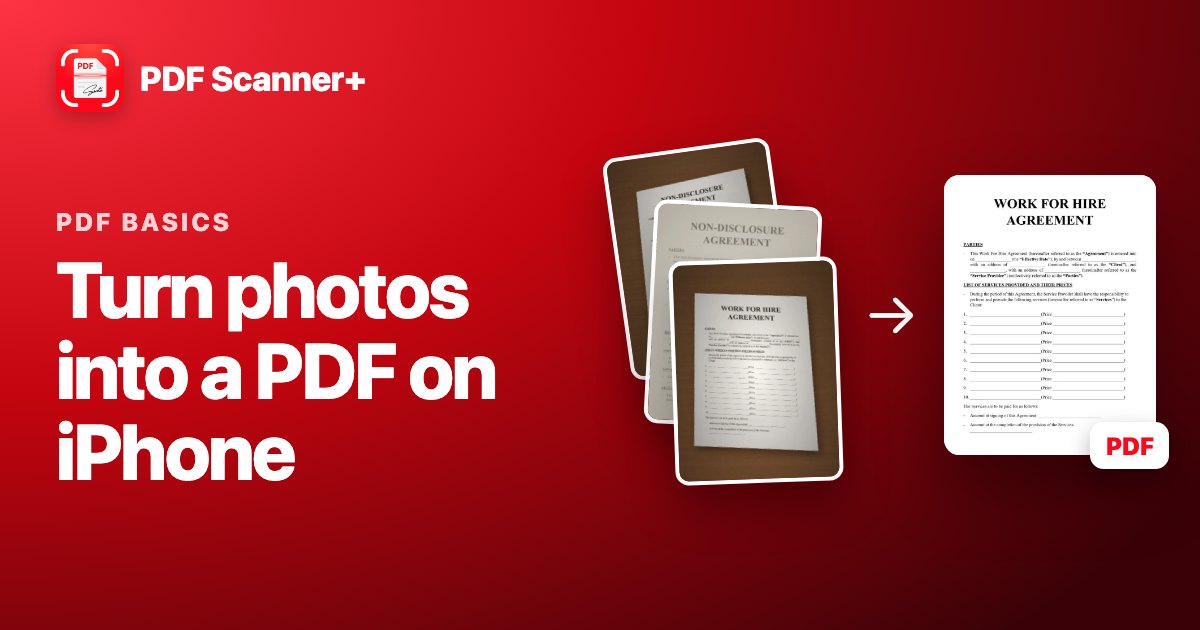 PDF basics
How to Turn Photos into a PDF on iPhone (Free)
Took photos of a document instead of scanning it? Here's how to combine them into one PDF on your iPhone for free, and how to make them look like real scans.
Read guide →
Your scanner is already in your pocket
PDF Scanner+ turns paper into clean PDFs in seconds. Your documents stay on your iPhone. Free to download.