How to Combine PDFs on iPhone (Free, No App Needed)
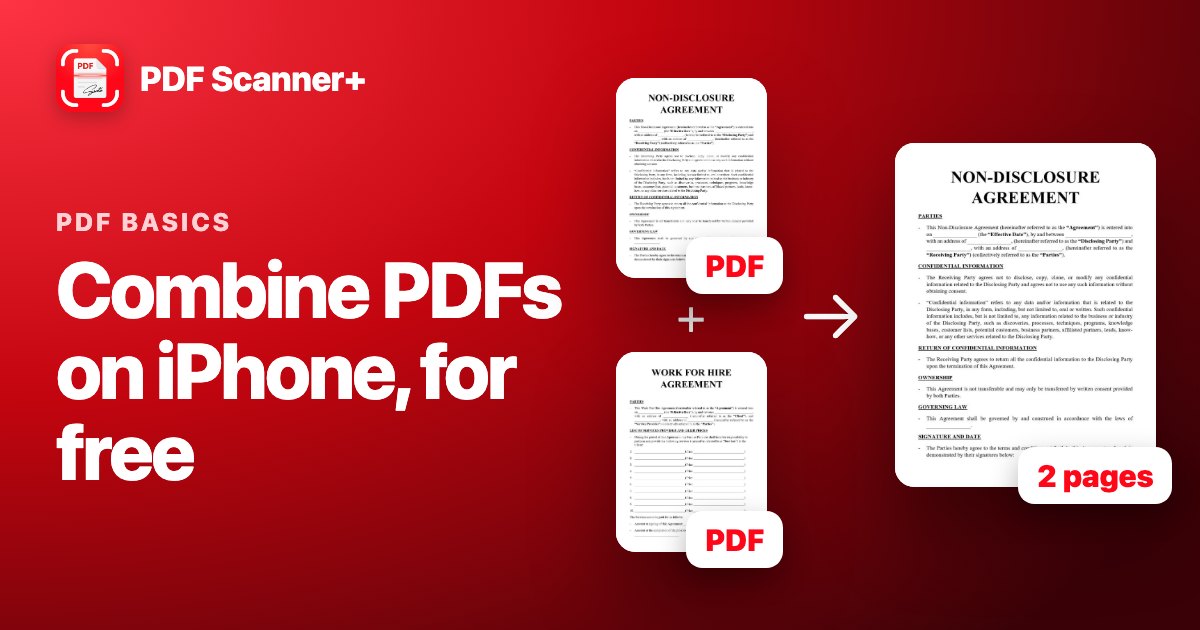
You have a signed contract in one PDF, the appendix in another, and someone wants it all as one file. You don't need a computer or a special app for that: the Files app on your iPhone can merge PDFs in a few taps.
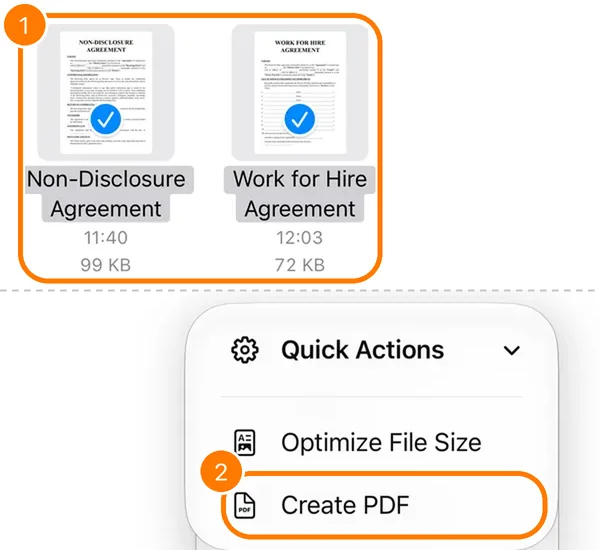
Put the PDFs in the same folder in the Files app. Tap ⋯ → Select, tap the PDFs in the order you want them, then tap ⋯ → Quick Actions → Create PDF. Files makes a new PDF with all the pages.
How to combine PDFs in the Files app
- Open Files and go to the folder with your PDFs. If they're in different places, move them into one folder first (touch and hold a file and choose Move).
- Tap ⋯ in the top corner and choose Select.
- Tap each PDF you want to combine.
- Tap ⋯ at the bottom right, then Quick Actions → Create PDF.
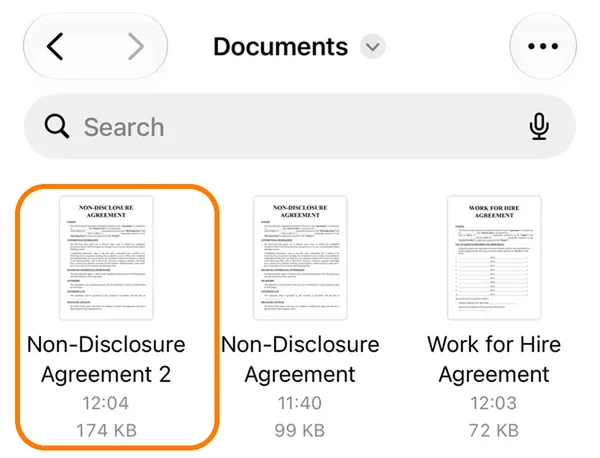
A new PDF appears in the same folder after a moment. It's named after the first file with a number added, for example Non-Disclosure Agreement 2. Your original PDFs stay as they are.
Getting the page order right
Always open the new PDF and check the pages before you send it. If they're in the wrong order:
- Rename the files first with numbers, like 1 Contract and 2 Appendix, sort the folder by name, and combine them again.
- Delete the combined PDF you don't need, so you don't send the wrong one by mistake.
Is the combined file too big to email?
When you select PDFs in the Files app, the same Quick Actions menu also has Optimize File Size. Use it on a large PDF to make a smaller version that's easier to send. Check the result to make sure the text is still sharp.
Combining scans and adding pages later
Combining PDFs is also the easiest fix when you forgot a page in a scan: scan the missing page as its own PDF and combine the two. Our guide on scanning multiple pages into one PDF has more tips for long documents.
If you do this often, a scanner app keeps documents editable. In PDF Scanner+, our app, you can open a document, tap Add to bring in more pages from the scanner, the Files app or your photos, and tap Reorder to drag pages into place. Everything stays on your iPhone. The app is free to download and your first document is free. Premium unlocks unlimited documents and sharing or printing your PDFs.
Frequently asked questions
Can I merge PDFs on iPhone for free?
Yes. The Files app does it for free with Quick Actions → Create PDF. You don't need to install anything.
Will combining PDFs change my original files?
No. Files creates a new PDF and leaves the originals untouched. Delete them yourself if you no longer need them.
Can I combine PDFs and photos into one file?
Save the photos to the Files app first, then select them together with your PDFs and use Create PDF. See how to turn photos into a PDF for the steps.
Why don't I see Create PDF?
Make sure you've selected the files first (⋯ → Select), then look under ⋯ → Quick Actions. The option only appears when files are selected.
Keep reading
 Scanning
How to Scan Multiple Pages into One PDF on iPhone
Scan a contract, a form or a booklet into a single PDF on your iPhone, for free. Plus how to fix the page order and add pages you forgot.
Read guide →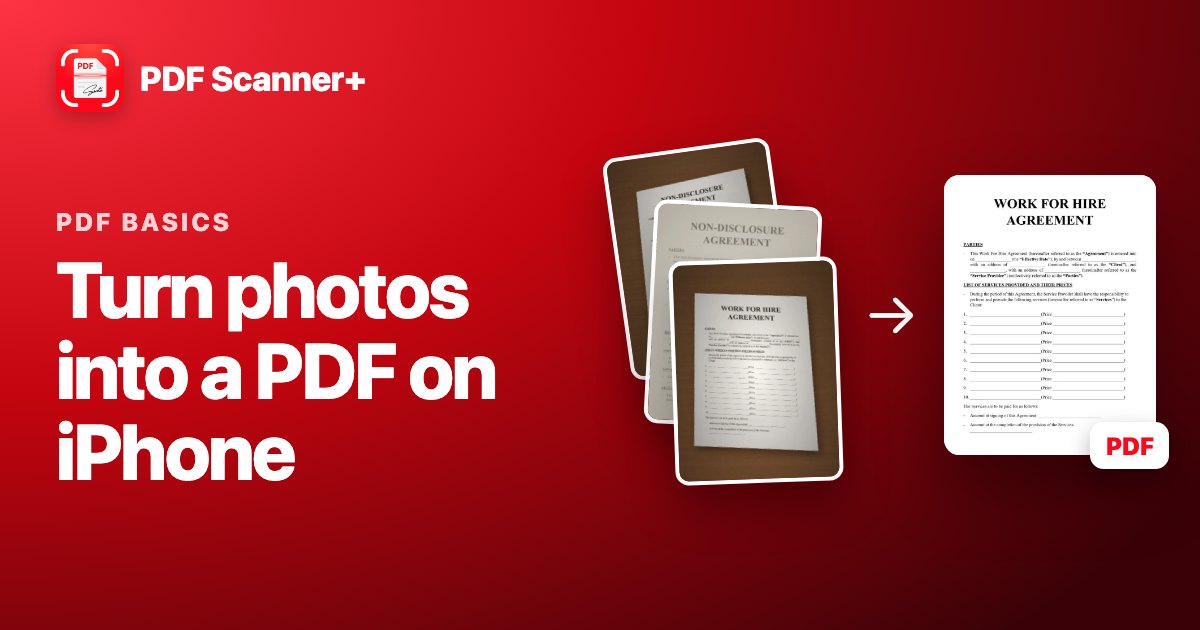 PDF basics
How to Turn Photos into a PDF on iPhone (Free)
Took photos of a document instead of scanning it? Here's how to combine them into one PDF on your iPhone for free, and how to make them look like real scans.
Read guide →
Your scanner is already in your pocket
PDF Scanner+ turns paper into clean PDFs in seconds. Your documents stay on your iPhone. Free to download.