How to Scan Receipts on iPhone and Keep Them Organised
Receipts have a way of disappearing exactly when you need them: for an expense report, a warranty claim or your tax return. And the ones you do keep often fade until they're unreadable.
Scanning them with your iPhone fixes both problems. Here's a simple system that takes a few seconds per receipt and makes every one easy to find later.
- Make a Receipts folder in the Files app, ideally in iCloud Drive, with a folder for each year.
- Open the folder, tap ⋯ → Scan Documents, and scan the receipt.
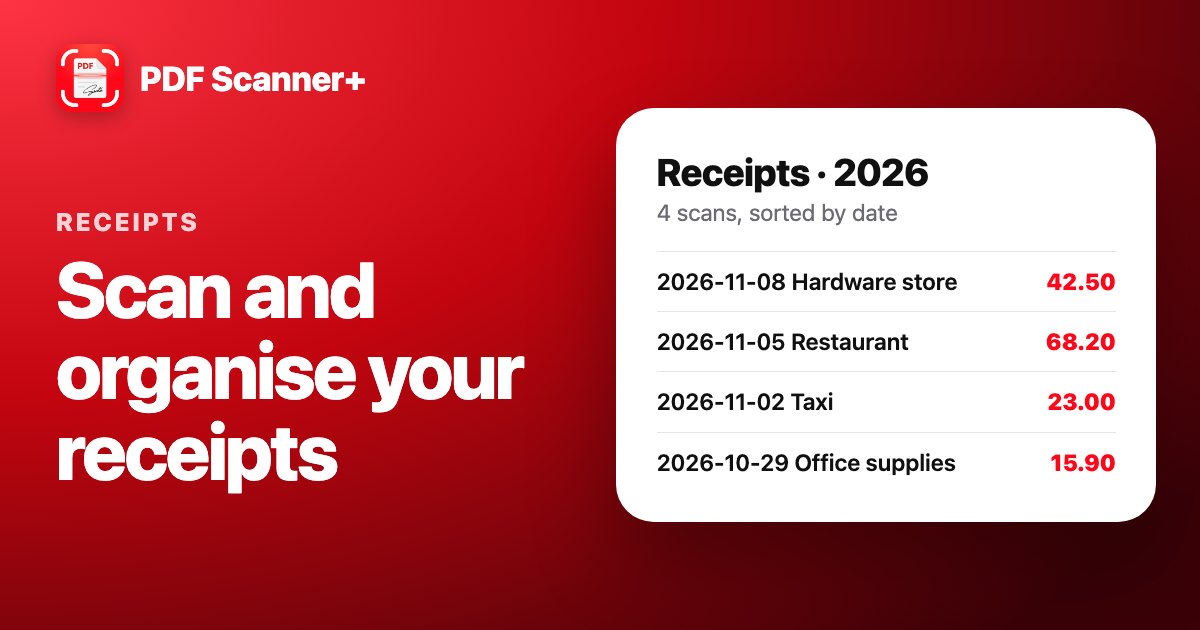
- Rename it with the date, shop and amount, for example 2026-11-08 Hardware store 42.50.
Step 1: Set up a place for your receipts
- Open Files, tap Browse and choose iCloud Drive, so your receipts are backed up and on all your devices.
- Tap ⋯ → New Folder and call it Receipts.
- Inside it, make a folder for this year. If you claim expenses, you can add one folder per month or per category, like Work and Home.
Step 2: Scan the receipt
- Open the folder where the receipt belongs.
- Tap ⋯ → Scan Documents and hold your iPhone over the receipt.
- Tap Save. The receipt is saved as a PDF right in that folder.
Tips for receipts in particular
- Scan them the same day. Most receipts are printed on thermal paper, which fades over time, especially in a warm wallet or car.
- Use a dark background. White receipts on a white table are hard for the scanner to find. A dark table or notebook works much better.
- Flatten crumpled receipts with your hand before you scan. Creases cast shadows across the text.
- Long receipts: fold them into sections and scan each part as a separate page in the same scan.
Step 3: Name it so you can find it
A folder full of files called “Scanned Document” isn't much help. Touch and hold the new PDF, choose Rename, and use the same pattern every time:
Date – Shop – Amount, for example 2026-11-08 Hardware store 42.50.
Starting with the date in year-month-day order means your receipts sort themselves in date order, and you can find any receipt with the search bar in Files.
Prefer an app that keeps it all in one place?
If you scan receipts every week, a scanner app saves time. In PDF Scanner+, our app, every scan goes into one list that you can search and sort by date. You can also brighten faded receipts with the Enhance and black-and-white filters to make faint text readable again.
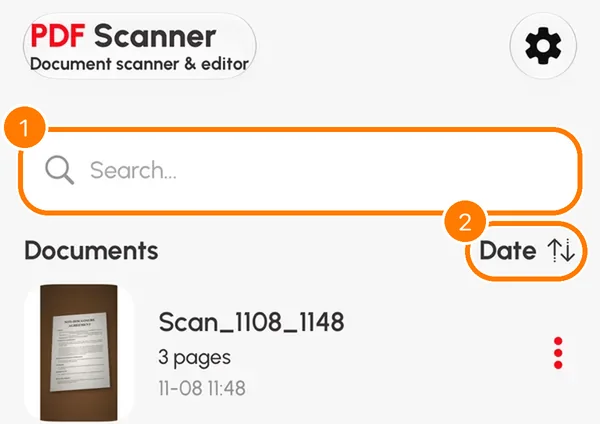
Your scans are stored only on your iPhone, never uploaded. The app is free to download and your first document is free. Premium unlocks unlimited documents and sharing or printing your PDFs.
For more on scanning, see our complete guide to scanning documents on iPhone.
Frequently asked questions
What's the best free way to scan receipts on iPhone?
The scanner in the Files app. It saves each receipt as a PDF straight into the folder you choose, so organising them takes no extra steps.
How do I scan a very long receipt?
Fold it into sections and scan each section as a separate page in the same scan. You'll get one PDF with the whole receipt across several pages.
Can I still read a receipt that has faded?
Often, yes. Scan it and use a black-and-white or enhance filter to increase the contrast. Badly faded receipts may not be recoverable, which is why it's best to scan them on the day you get them.
Should I keep receipts in iCloud Drive or On My iPhone?
iCloud Drive, if you can. It backs your receipts up and makes them available on your other devices, so you won't lose them if you lose your phone.
Keep reading
 Complete guide
How to Scan Documents on iPhone: 3 Free Ways (and Which to Use)
Your iPhone is a good document scanner. Here's how to scan to PDF with Notes, the Files app or a scanner app, plus tips for sharp, readable scans.
Read guide → Scanning
How to Scan Multiple Pages into One PDF on iPhone
Scan a contract, a form or a booklet into a single PDF on your iPhone, for free. Plus how to fix the page order and add pages you forgot.
Read guide →
Your scanner is already in your pocket
PDF Scanner+ turns paper into clean PDFs in seconds. Your documents stay on your iPhone. Free to download.