How to Scan Multiple Pages into One PDF on iPhone
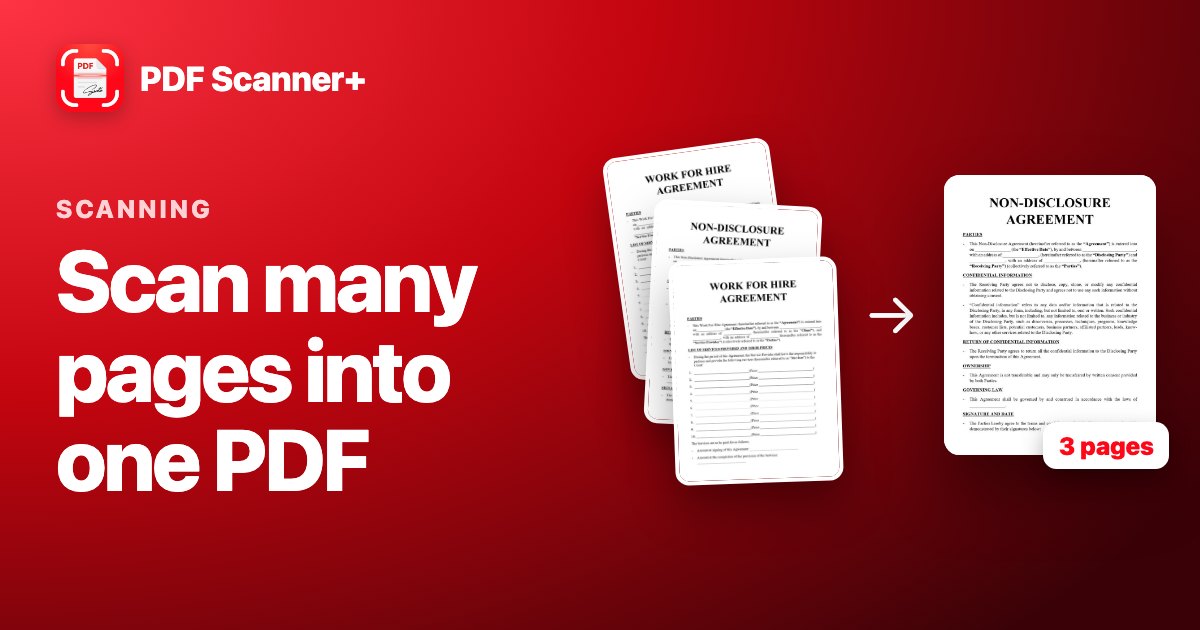
A contract has six pages, the bank wants them in one PDF, and the last thing you want is six separate files. Good news: your iPhone's scanner is made for this. You can scan every page in one go and save them as a single PDF.
Here's how to do it with the free scanner built into iOS, how to put pages back in the right order, and what to do when you forgot a page.
Open the Files app, open a folder, tap ⋯ → Scan Documents, and scan each page one after the other without tapping Save. When the last page is captured, tap Save. All pages end up in one PDF.
Scan several pages with the Files app
- Open Files, tap Browse and open the folder where you want the PDF.
- Tap ⋯ in the top corner and choose Scan Documents.
- Hold your iPhone over the first page. It's captured automatically when the page is detected.
- Put the next page in place and let it capture again. Repeat for every page. The number of pages scanned so far is shown at the bottom of the screen.
- When all pages are done, tap Save. You get one PDF with all the pages, in the order you scanned them.
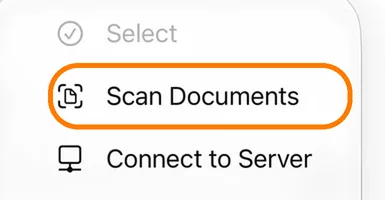
The scanner in the Notes app works the same way: in a note, tap the paperclip button, choose Scan Documents and keep scanning until you're done.
Tips for long documents
- Number the pages first, or keep them in a neat stack, so you scan them in the right order.
- Use the same spot and light for every page. Put each page in the same place on the table so the scanner finds it quickly.
- Check the thumbnail after each capture. Tap it to look at the pages you've scanned and retake a blurry one before you save.
- Double-sided pages? Scan the front, turn the page over, scan the back, then move on to the next sheet.
Pages in the wrong order, or a page missing?
Apple's scanner is great at capturing pages, but once a PDF is saved, rearranging pages or adding one you forgot isn't simple. You have two options:
- Scan the missing pages as a separate PDF and combine the two. The Files app can merge PDFs for free. See our guide on how to combine PDFs on iPhone.
- Use a scanner app that lets you edit the document later.
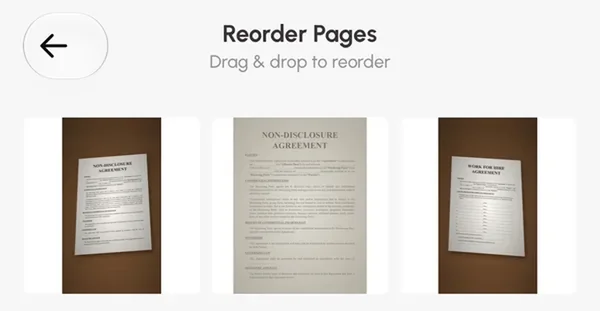
In PDF Scanner+, our app, every document stays editable. Tap Add to add pages from the scanner, the Files app or your photos, and tap Reorder to drag pages into the right order.
Everything stays on your iPhone. The app is free to download and your first document is free. Premium unlocks unlimited documents and sharing or printing your PDFs.
New to scanning on iPhone? Start with our complete guide to scanning documents on iPhone.
Frequently asked questions
Is there a limit to how many pages I can scan into one PDF?
Not in practice for everyday documents. Very long documents make big files, though, so for something like a 50-page manual, check the file size before you email it.
Can I scan both sides of a page?
Yes. Scan the front, turn the sheet over and scan the back before moving on. Both sides end up in the same PDF, one after the other.
How do I add a page to a PDF I already saved?
With the built-in tools, scan the extra page as a new PDF and combine the two in the Files app. In a scanner app like PDF Scanner+, open the document and tap Add.
Where is my multi-page scan saved?
A scan from the Files app is saved in the folder you were in when you started. A scan from Notes stays inside the note until you share it or save it to Files.
Keep reading
 Complete guide
How to Scan Documents on iPhone: 3 Free Ways (and Which to Use)
Your iPhone is a good document scanner. Here's how to scan to PDF with Notes, the Files app or a scanner app, plus tips for sharp, readable scans.
Read guide →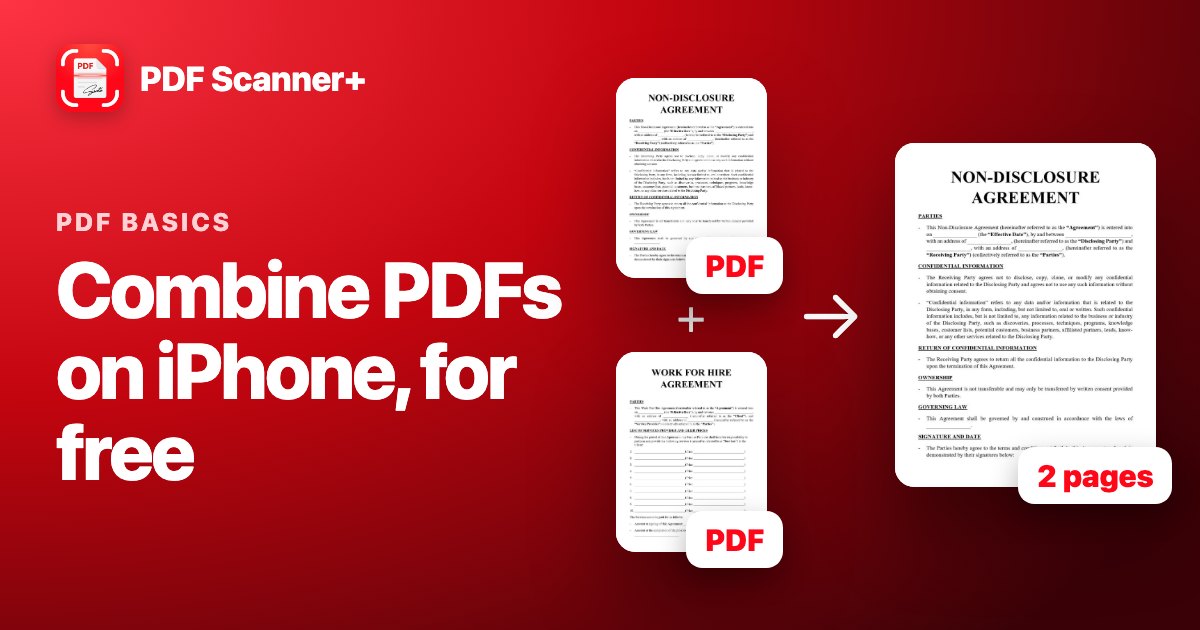 PDF basics
How to Combine PDFs on iPhone (Free, No App Needed)
Merge several PDFs into one on your iPhone in seconds with the Files app. Step by step, plus how to get the page order right and make the file smaller.
Read guide →
Your scanner is already in your pocket
PDF Scanner+ turns paper into clean PDFs in seconds. Your documents stay on your iPhone. Free to download.