How to Turn Photos into a PDF on iPhone (Free)
You snapped a few photos of a form, some receipts or a page from a book, and now someone wants it as a PDF. Good news: you don't have to scan everything again. Your iPhone can combine those photos into a single PDF for free.
Here are two ways to do it: the free one built into the Files app, and a scanner app that also crops and cleans up the photos so they look like proper scans.
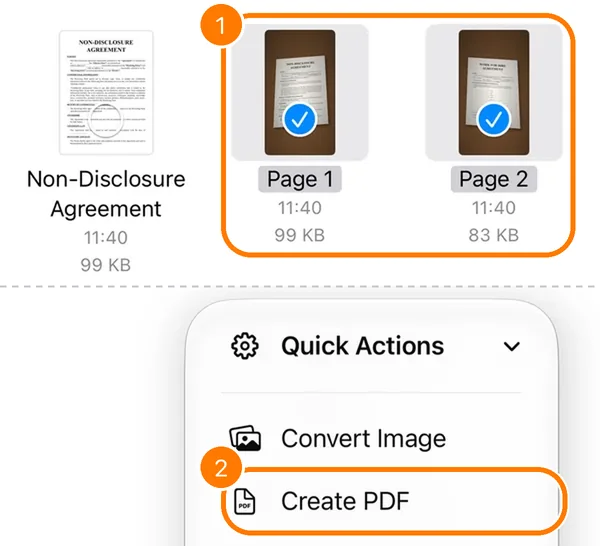
Save the photos to the Files app, open the folder, tap ⋯ → Select and pick the photos. Then tap ⋯ → Quick Actions → Create PDF. Files makes one PDF with a page for each photo.
Method 1: Create a PDF in the Files app (free)
Step 1: Save the photos to Files
- In the Photos app, tap Select and choose the photos you want in the PDF.
- Tap the Share button and choose Save to Files.
- Pick a folder, for example a new one called “For PDF”, and tap Save.
Step 2: Combine them into one PDF
- Open the Files app and go to the folder with your photos.
- Tap ⋯ in the top corner and choose Select.
- Tap the photos in the order you want them as pages.
- Tap ⋯ at the bottom right, then Quick Actions → Create PDF.
A new PDF appears in the same folder. Open it to check the pages, then share it from there.
Method 2: Use a scanner app to make the text easier to read
The Files method keeps your photos exactly as they are. If the text in them is faint or the light was poor, a scanner app can make the pages clearer before you save the PDF.
In PDF Scanner+, our app, tap Start and choose Gallery to pick photos from Photos, or Files to pick images from the Files app. Then you can:
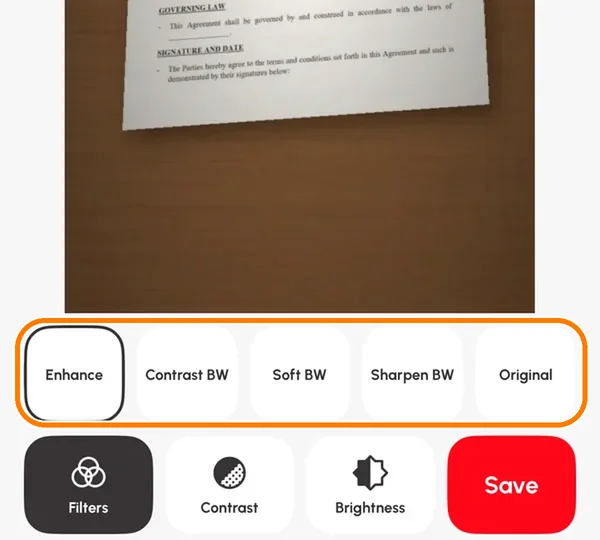
- sharpen faint text with the Enhance and black-and-white filters, and adjust contrast and brightness,
- reorder, rotate or delete pages, and add more,
- and sign the document if it needs a signature.
An imported photo keeps its original framing, so if the background matters, crop it in the Photos app first, or scan the page with the camera instead. The camera scanner finds the page edges for you.
Everything happens on your iPhone, and your documents aren't uploaded anywhere. The app is free to download and your first document is free. Premium unlocks unlimited documents and sharing or printing your PDFs.
Photos or a real scan: which is better?
If you still have the paper, scanning it is usually better than photographing it. The scanner finds the edges of the page, flattens it and makes the background white, so text is easier to read and the file is often smaller. Our guide to scanning documents on iPhone shows three free ways.
Turning photos into a PDF makes most sense when you no longer have the original, like a receipt you've thrown away or a whiteboard that's been wiped.
Tips for a better PDF from photos
- Crop out the background in the Photos app first (Edit → Crop) if you're using the Files method.
- Check that every photo is sharp. Zoom in on the text. Blurry photos make blurry PDF pages.
- Keep the pages the same way up. Rotate sideways photos before you combine them.
- Need to sign it? Once you have the PDF, see how to sign a PDF on iPhone.
Frequently asked questions
Can I convert a photo to PDF on iPhone without an app?
Yes. Save the photo to the Files app, select it, then tap ⋯ → Quick Actions → Create PDF. It's built into iOS and free.
How do I put several photos into one PDF?
Select all of them in the Files app before you tap Create PDF. Files makes a single PDF with one page per photo.
Why is my PDF so large?
Photos from a modern iPhone are big, so a PDF made from them can be several megabytes per page. A scanner app usually produces smaller files, because it crops each page and cleans it up.
Can I add more pages to the PDF later?
With the Files method, make a PDF of the new photos and combine it with the first one. In a scanner app like PDF Scanner+, you can add pages to an existing document.
Keep reading
 Complete guide
How to Scan Documents on iPhone: 3 Free Ways (and Which to Use)
Your iPhone is a good document scanner. Here's how to scan to PDF with Notes, the Files app or a scanner app, plus tips for sharp, readable scans.
Read guide →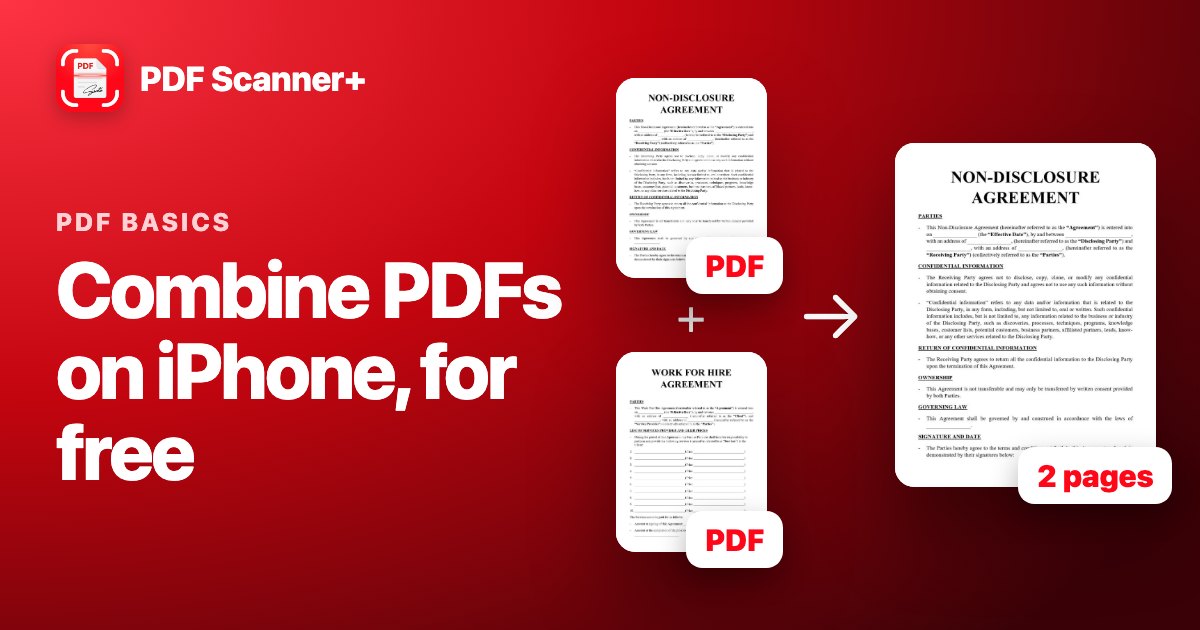 PDF basics
How to Combine PDFs on iPhone (Free, No App Needed)
Merge several PDFs into one on your iPhone in seconds with the Files app. Step by step, plus how to get the page order right and make the file smaller.
Read guide →
Your scanner is already in your pocket
PDF Scanner+ turns paper into clean PDFs in seconds. Your documents stay on your iPhone. Free to download.